
Work out how you usually get around a blocker
Think about the last time a blocker failed because you turned it off rather than because it missed content. Perhaps you opened Android Settings, removed the app or switched a scanning toggle off as soon as an urge appeared. Each action suggests a different control, so start with the bypass you actually use instead of enabling every available permission at once.
NSFW Locker separates its protection controls from its content scanning controls. Screen scanning helps detect explicit content, while optional tamper controls can add steps around Android Settings and removal. This distinction matters during testing because a difficult uninstall process will not fix content that the scanner cannot see, and good detection will not help if you disable it immediately.
Understand the two tamper controls
Protect Android Settings is designed to interrupt access to Settings when it is enabled. Uninstall Protection uses Android Device Admin to add a removal step. The app displays these as separate choices on the protection screen, which lets you test the core blocker before choosing whether either extra control fits your needs.
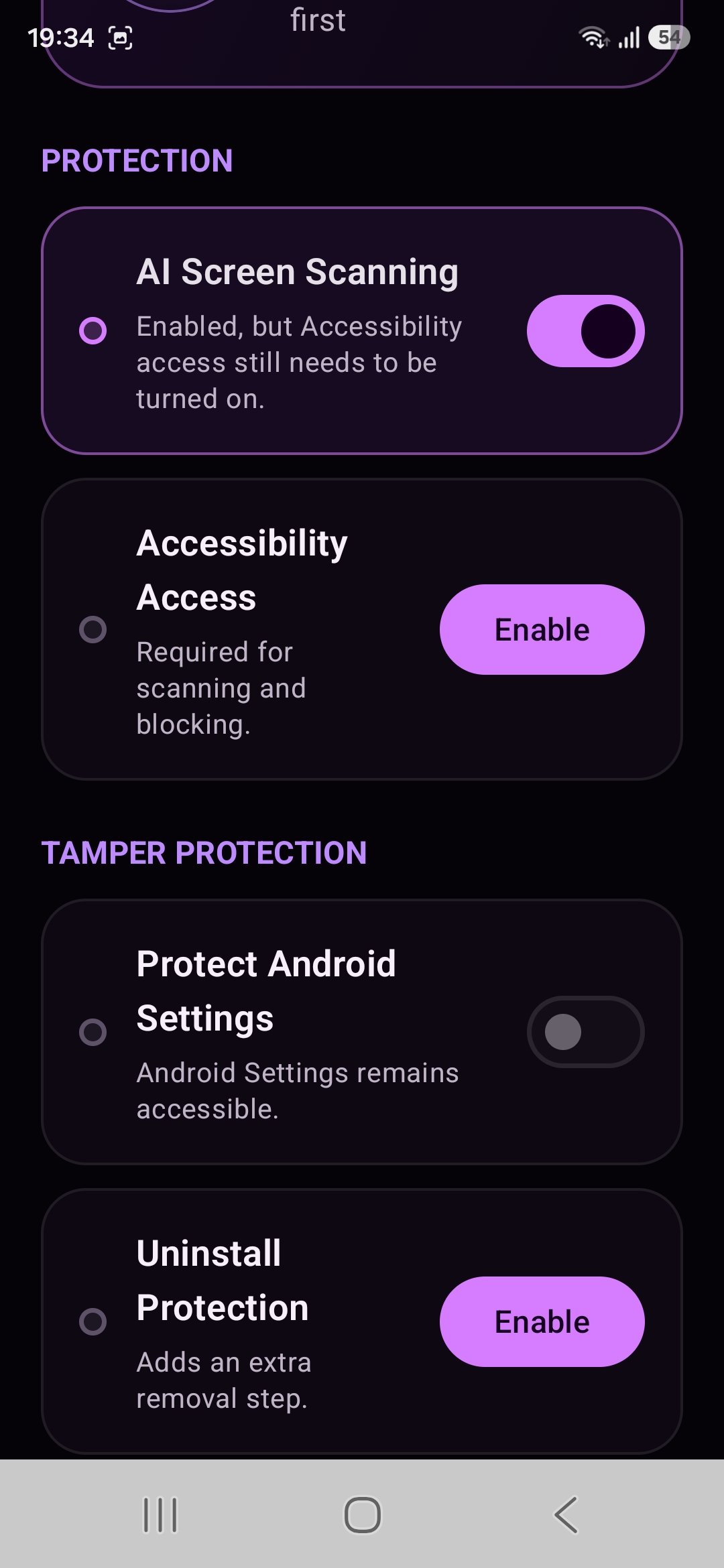
Read the Android prompt shown when Device Admin is activated. This is a powerful system role and it changes the route you take to remove the app. It is not the same thing as Accessibility, which supports NSFW Locker's screen monitoring and blocking flow. If you need reliable access to Android Settings for work or another app, test Settings protection carefully before relying on it for a longer period.
Add a timed decision point
Lock Protection lets you choose how long screen protection must remain enabled. A short test period helps you learn how the app behaves before selecting a longer duration, especially when you are also trying Settings protection. The available presets and custom duration appear on the lock screen shown below.
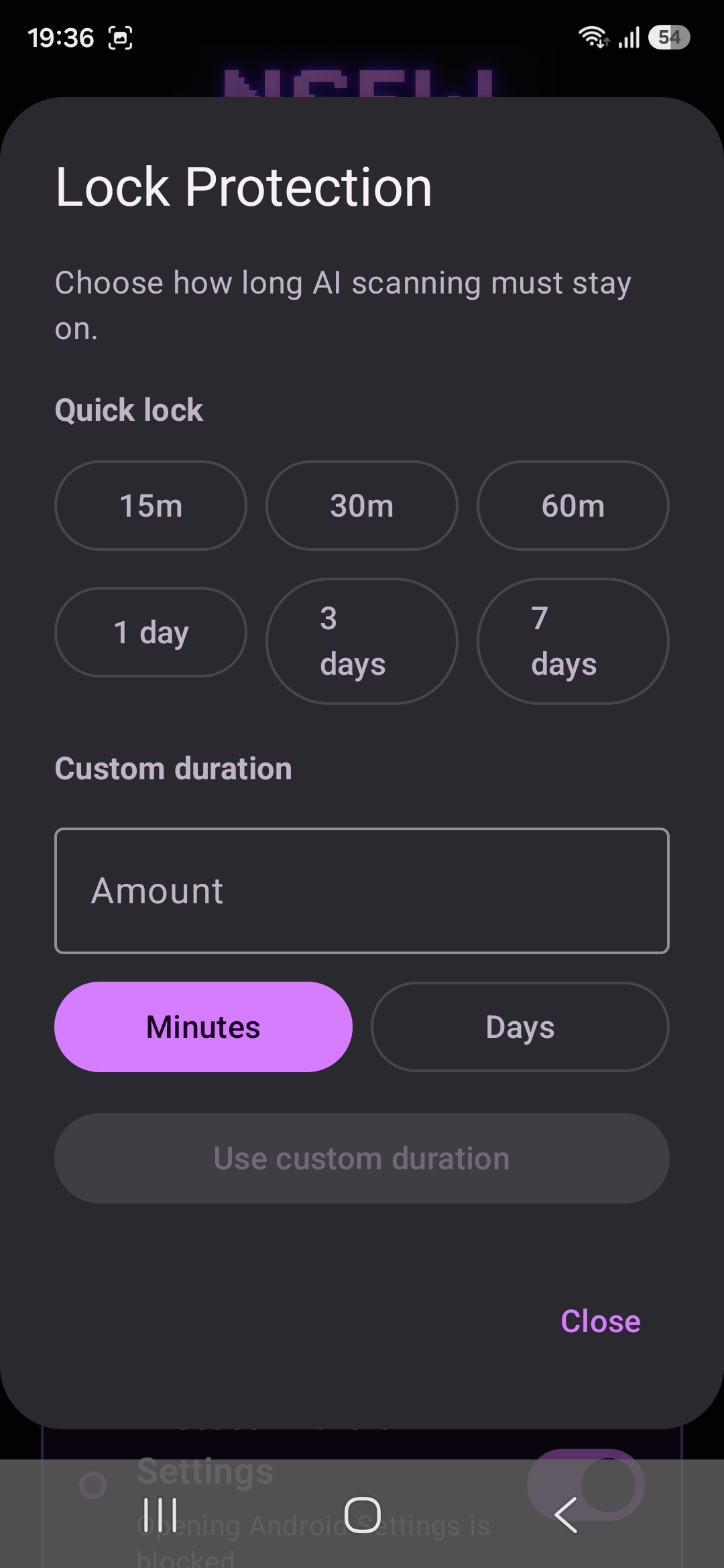
A duration is most useful when it covers the time when you tend to make an impulsive change. Setting it longer than you understand can create frustration during ordinary phone use, so check notifications, settings access and the apps you depend on first. The goal is a pause that helps you keep a decision made earlier, not a claim that software can control every future choice.
See the system permission before enabling it
When Uninstall Protection is selected, Android opens a Device Admin activation screen rather than silently changing the phone. The screenshot shows the separate system confirmation and the actions Android displays for this permission. Review the prompt on your own device because wording and menu locations can vary by Android version and manufacturer.
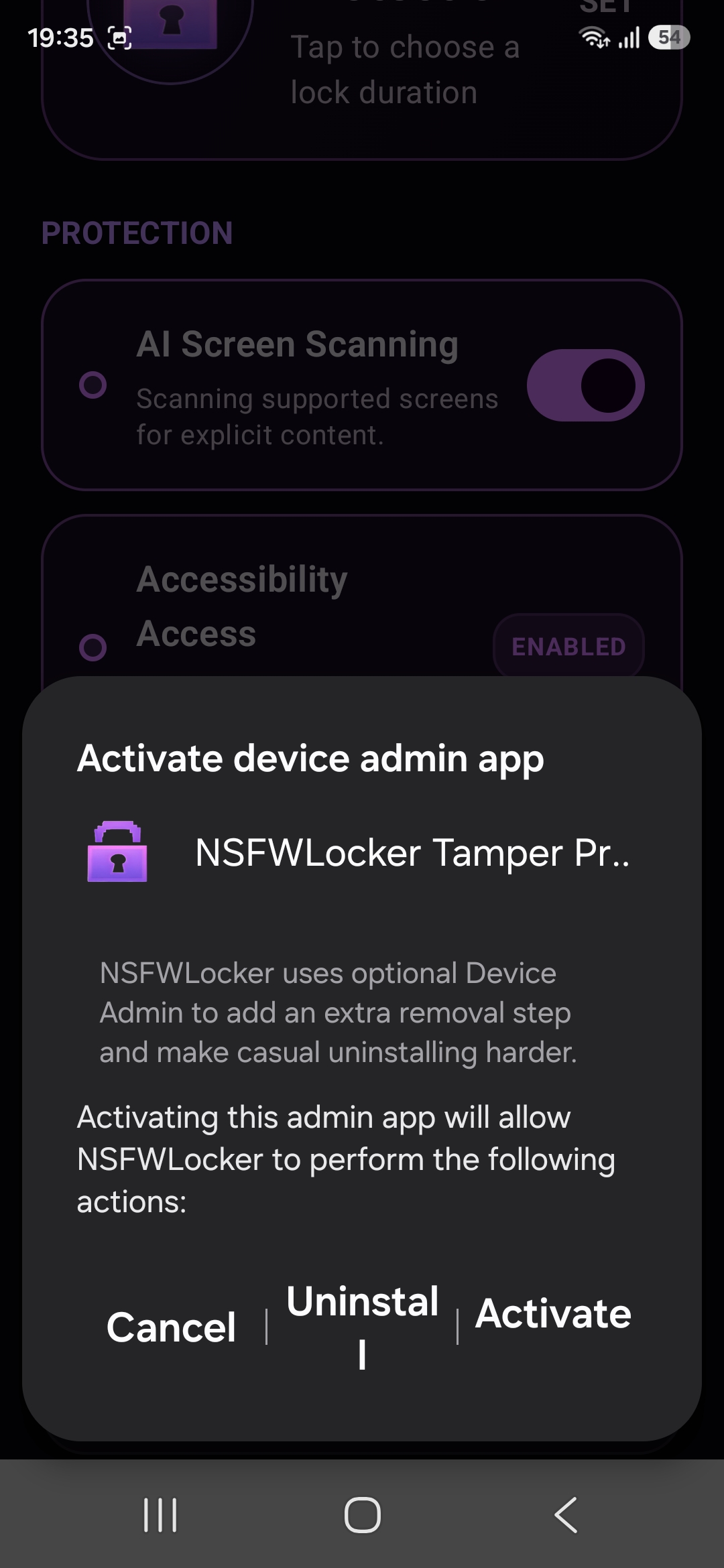
If you are unsure whether you want Device Admin, you can leave the option off during the first part of the trial. Enable it only after the scanner and ordinary phone tasks work as expected. The illustrated installation guide shows the prompts in order, while the support page provides a route for device specific help.
Judge the result on your own phone
During the 24 hour trial, test the complete sequence you want to use without creating a situation you cannot manage. Confirm scanning and Accessibility first, then enable one tamper control and observe how it affects routine tasks. Repeat with a suitable lock duration only when you understand the earlier result.
Describe the controls by the results you actually observed on your phone during the trial. Device Admin adds a removal step, Settings protection can interrupt a common route and Lock Protection creates a timed barrier, but no ordinary Android app can promise that every possible device change is impossible. If missed content rather than removal is your problem, read the screen content guide before making the uninstall process stricter.