
Reconstruct the last bypass
Recall what happened the last time a blocker failed you. You might have opened a different browser, viewed content inside an app, disabled a permission or removed the blocking app altogether. Note the first action that made protection ineffective rather than simply writing that the tool was too easy to bypass. That action gives you a concrete place to add friction.
If the bypass was another browser or an in app feed, start with broader content coverage. If the bypass was opening Android Settings, look at Settings protection. If the bypass was uninstalling the app, an extra removal step may help. This distinction prevents you from building a strict lock around a detector that still misses the content you wanted to block.
Make the impulsive action take longer
NSFW Locker offers optional Protect Android Settings and Uninstall Protection controls. The first can interrupt access to Android Settings while it is enabled, and the second uses Android Device Admin to add a removal step. They are designed to put a pause between an urge and a quick change, while AI Screen Scanning remains responsible for detecting screen content.
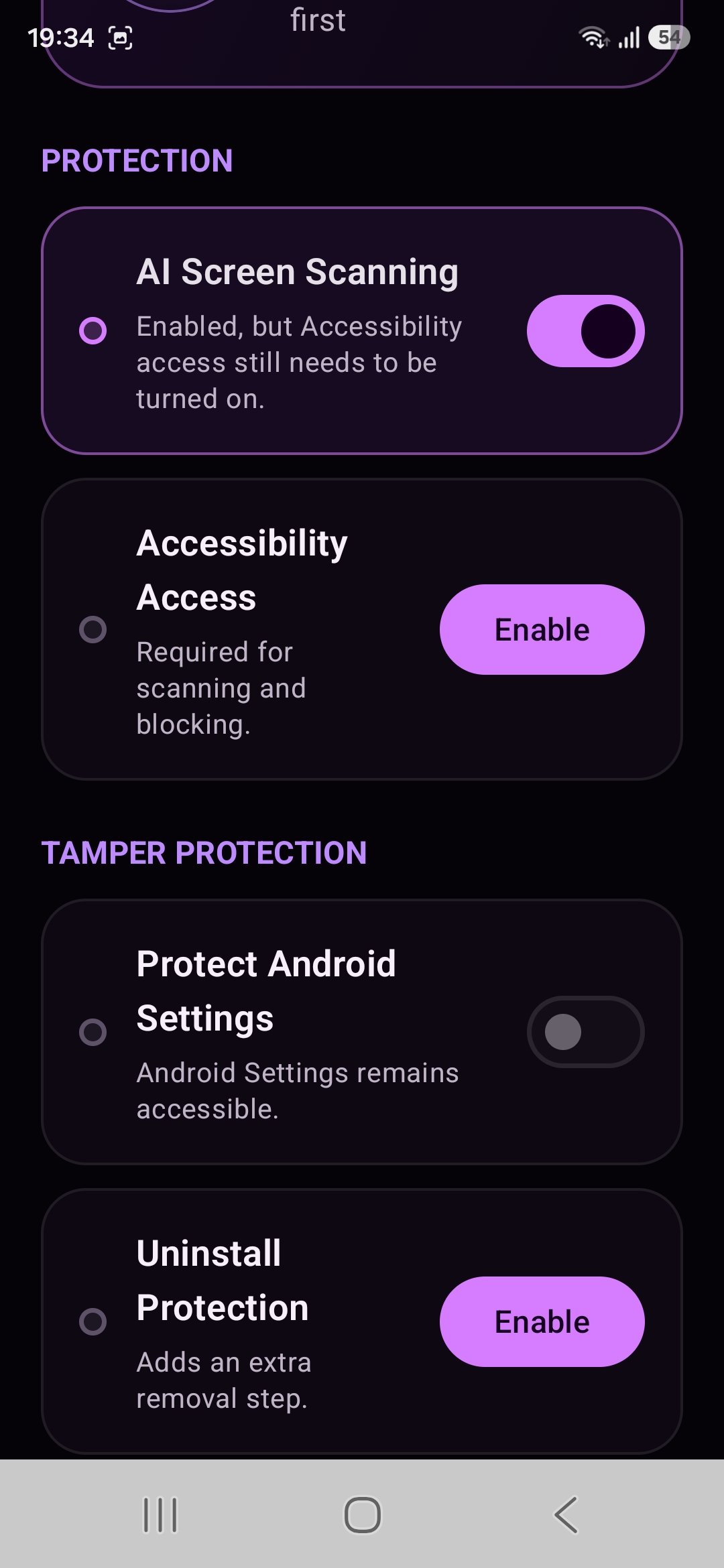
Try one control at a time during the 24 hour trial. Confirm that ordinary tasks still work, then decide whether a second control would solve a real weakness. Device Admin is a sensitive Android role and Settings protection can affect legitimate device management, so read the permission screens and keep a path to support before you set a longer lock.
Use a duration that matches your pattern
Lock Protection lets you choose how long scanning must stay enabled. If your risky period is a predictable part of the day, the duration can make a decision taken earlier harder to reverse in the moment. The app shows several preset lengths and a custom duration rather than forcing one rule on every user.
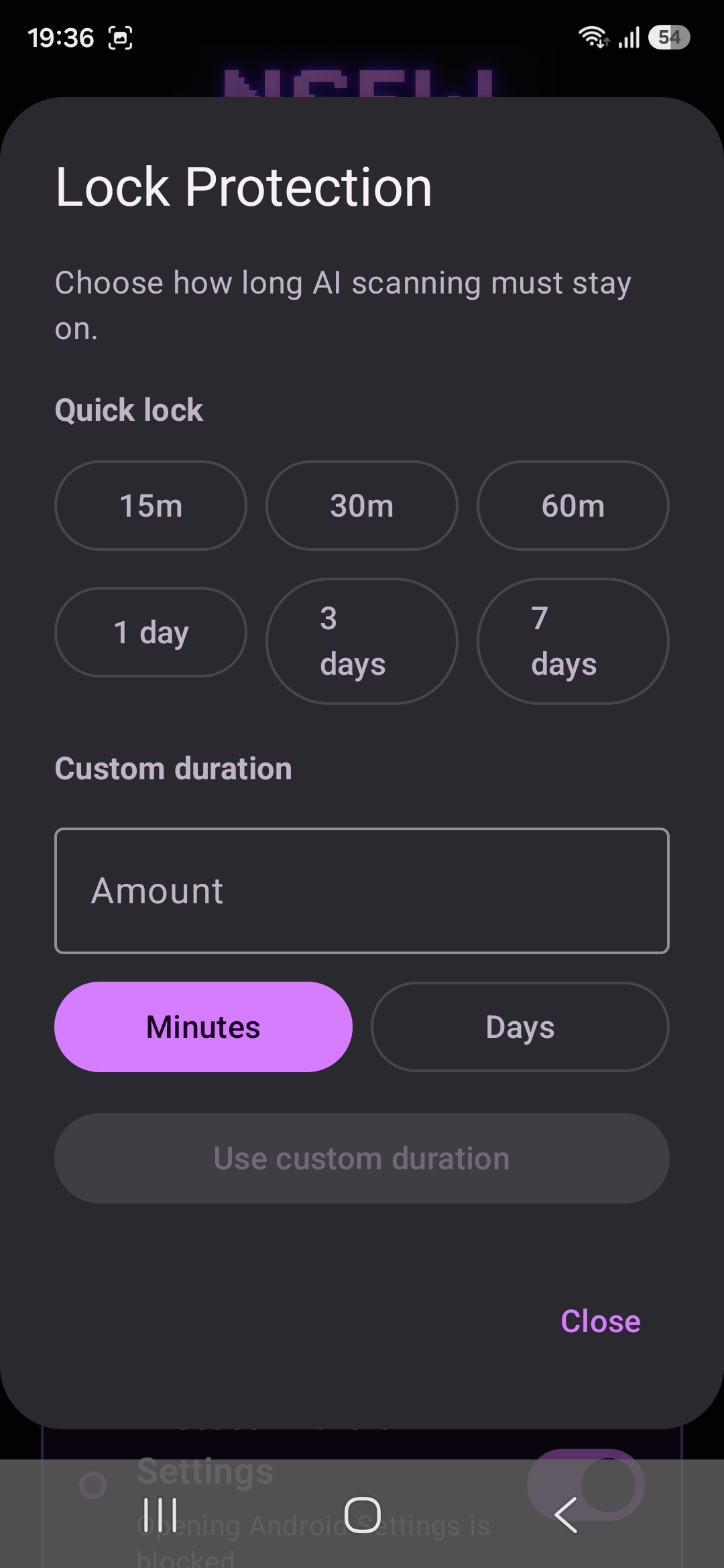
A longer lock period does not automatically make the setup more useful for your daily routine. A setting that prevents you from handling ordinary phone tasks may lead you to abandon the setup entirely, so begin with a modest interval and evaluate it honestly. The harder to uninstall guide explains how the duration differs from Device Admin and Android Settings protection.
Plan what you will do during the pause
Technical friction matters because it creates time for another action, not because an app can make a decision for you. Before you enable a lock, decide what you will do when the block screen appears: move away from the phone, start a task in another room or contact someone you trust. A plan made when you are calm is easier to follow than one invented while you are trying to bypass a control.
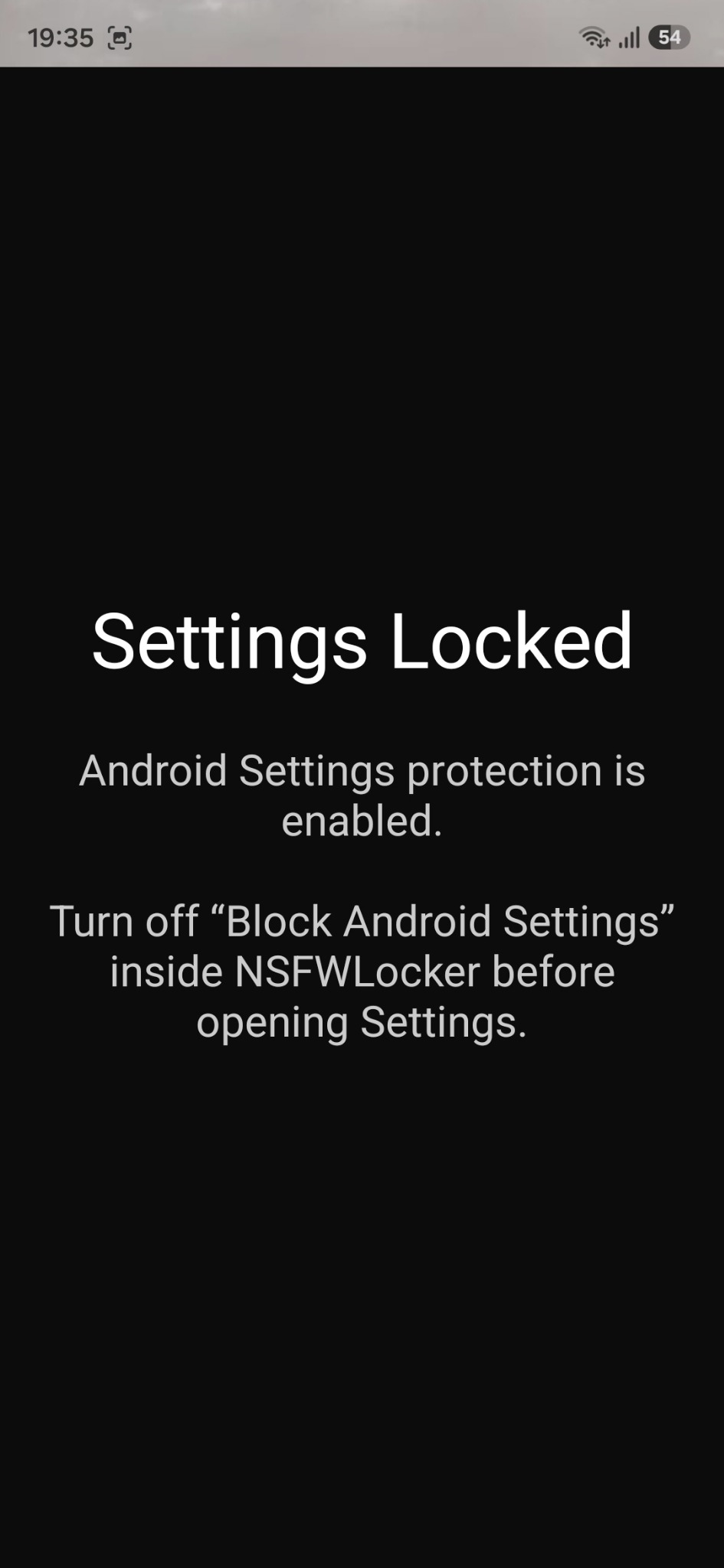
The Settings control shown in the screenshot addresses one possible route for turning protection off. It does not ensure that every app is covered or that a device cannot be changed by other means. If the problem feels difficult to manage on your own, support from a trusted person or a qualified professional can sit alongside technical barriers without depending on the phone at all.
Test the whole sequence
During the free trial, make sure screen scanning and Accessibility are active, then check the route you identified at the beginning. Test the apps that matter to you and the normal settings you still need. The installation guide shows the setup prompts in order, while the privacy policy explains what happens to detection screenshots.
Judge the result by whether it creates a useful pause and whether you can keep living with the setup. If the scanner misses content, fix coverage before adding stronger removal controls. If the scanner works but you keep disabling it, a timed lock or optional tamper control is more closely matched to the problem.