Identify what you want to interrupt
Begin with the last three occasions when you reached explicit content on your phone. Note whether you typed a website address, followed a search result, opened an app feed or switched to a private tab. These details matter because one control does not necessarily cover all four routes. A website blocklist is useful when the destination is predictable, while a feed inside a large platform requires a more specific choice.
Avoid building a complicated setup before you know where it fails. If you only visit a few known sites, browser or DNS controls could be enough for an initial barrier. If a general purpose app is the problem, decide whether you can remove the app, restrict it using its own settings or need a way to react to explicit images without blocking every ordinary post.
Turn on the controls already available
Check the content settings in the browsers, search engines and apps you actually use. Some services let you limit mature search results or hide sensitive media, and those settings are worth enabling even if you later add another blocker. Repeat the check for each browser and account because a restriction in one place may have no effect in another.
Test these controls during normal browsing with safe searches and ordinary pages. The aim is to confirm that useful sites still work while the obvious routes become less convenient. If you can reach the same kind of material through an in app browser or an app feed, you have found the point where a browser only solution stops helping.
Add screen detection when content appears inside apps
NSFW Locker uses Android screen scanning and Accessibility to support its blocking flow on Android 11 and later. Its protection screen shows both the scan control and the Accessibility setup button, so use the installation guide to complete both steps. The app can show a block screen after detecting explicit material and can temporarily block an app after repeated detections.
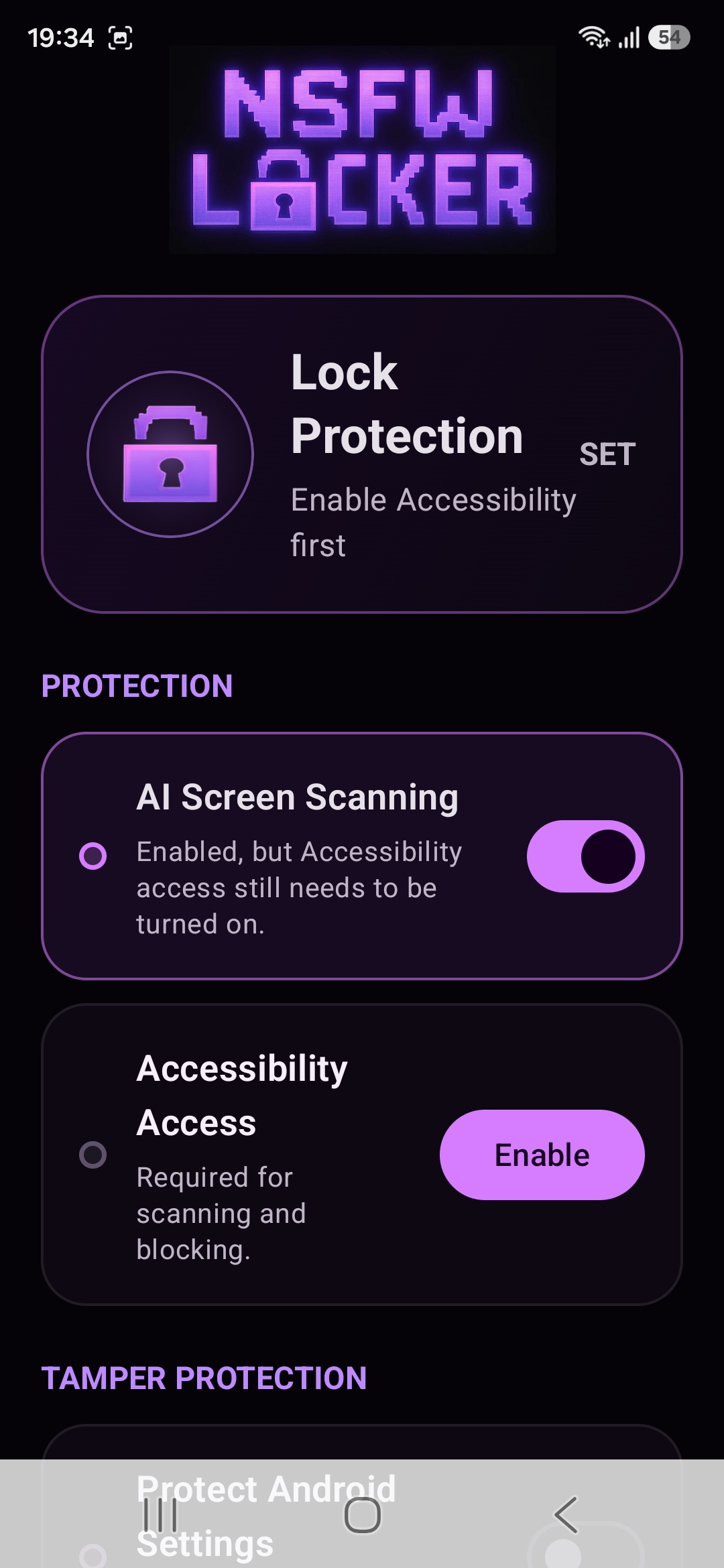
This layer is useful when the issue is content displayed inside a service that you otherwise want to keep using. It does not guarantee that every image will be recognised, and the privacy policy notes that Android screenshot protected windows cannot be seen by screenshot based detection. Test with your own apps and record any false blocks as carefully as missed content.
Decide how much bypass friction you need
If you often turn a blocker off when you feel an urge, add a control that targets that action rather than installing another website list. NSFW Locker offers optional Android Settings protection, Device Admin uninstall protection and a timed lock for scanning. The controls can slow down a removal attempt while leaving the content detection role to screen scanning.
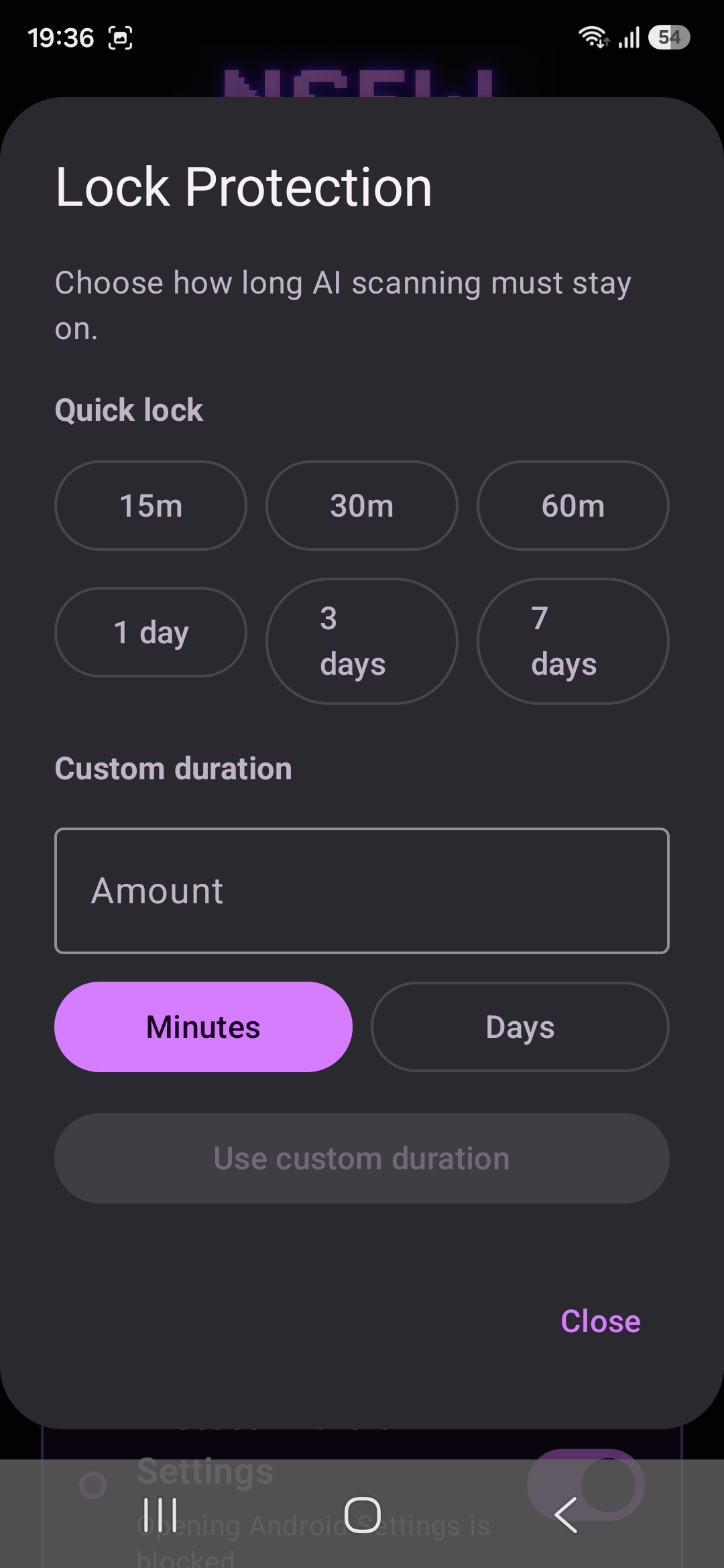
Start with a short duration during the trial and make sure you understand the effect on normal settings access. The point is to give yourself time to make a different decision, not to create a phone you cannot manage. If an app repeatedly causes problems even with scanning, removing that app may be simpler than adding more switches.
Run a practical 24 hour test
Follow the official installation walkthrough and start the trial only when you have time to finish setup. Check your usual browser, any private mode you use and the feeds that caused earlier problems. Confirm that the app remains active when you move between apps and that essential daily tasks still behave normally.
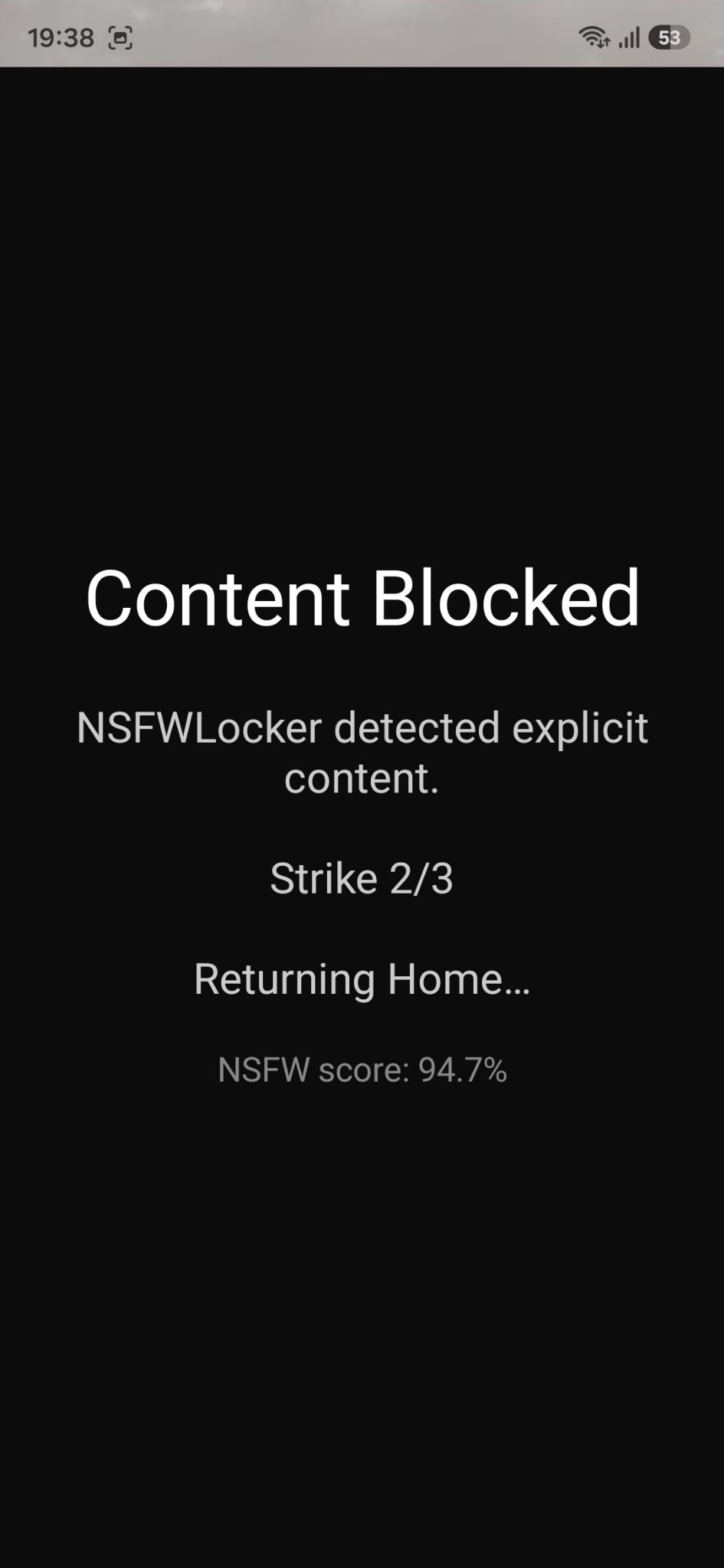
At the end of the trial, compare the result with the routes you wrote down at the start. If known websites were the only issue, a domain filter might remain your main tool; if in app content mattered, screen protection may fill that gap. The Android lifetime licence costs £35 for one device, and the free trial does not require a card.