Start with the routes that lead to content
Think about your last few encounters with explicit material rather than the feature list on a product page. If they began with a known website in a browser, a domain filter can remove an obvious route before a page loads. If they began in a general purpose app or an image search, the same domain list may not distinguish one explicit image from the rest of that service.
Write down the browser or app involved, the kind of content and the step where you would have preferred an interruption. This small exercise gives you a useful test plan and stops you from paying for a tool whose strongest feature covers the wrong part of your routine. It also shows whether you need to block a whole app or would rather keep access to ordinary content within it.
Understand what screen protection adds
NSFW Locker is an Android app for Android 11 and later that uses screen scanning as part of its protection flow. When it detects explicit content, the app can show a block screen and add a strike; repeated detections can cause a temporary app block. The controls shown below are the starting point for enabling scanning and the Accessibility service that supports the blocking flow.
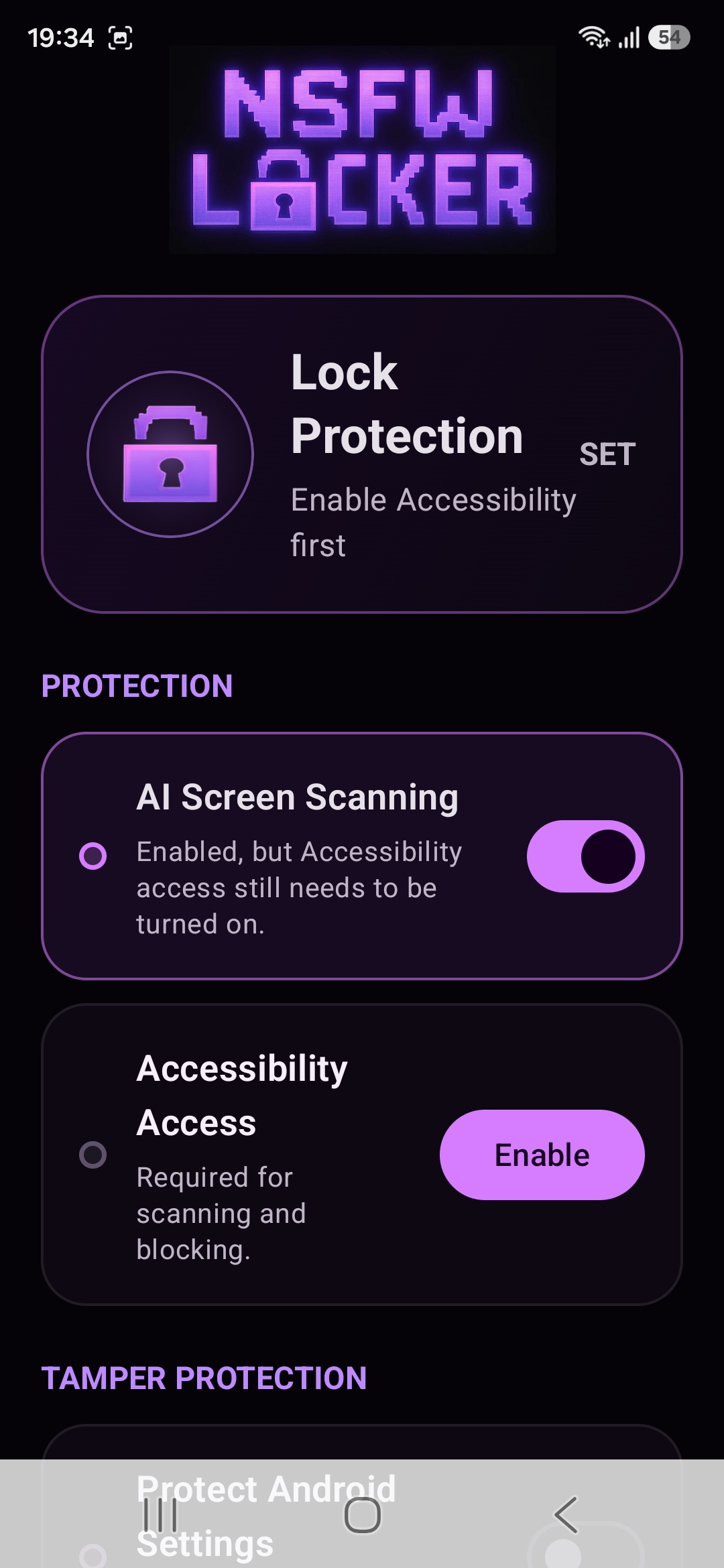
Screen protection addresses an image displayed inside an app as well as a browser page, which is why it can complement a website filter. It is still a detection system rather than a perfect wall. The privacy policy explains that screenshot protected windows cannot be inspected by screenshot based detection, and any detection system can have missed content or unwanted blocks.
Make removal harder only after the core test
The app also offers optional Settings protection, uninstall protection through Android Device Admin and a timed Lock Protection control. These features address the moment when you might disable the tool during an urge, but they are separate from the scan that notices explicit content. Start with scanning and Accessibility, then add the controls that match the way you tend to bypass a blocker.
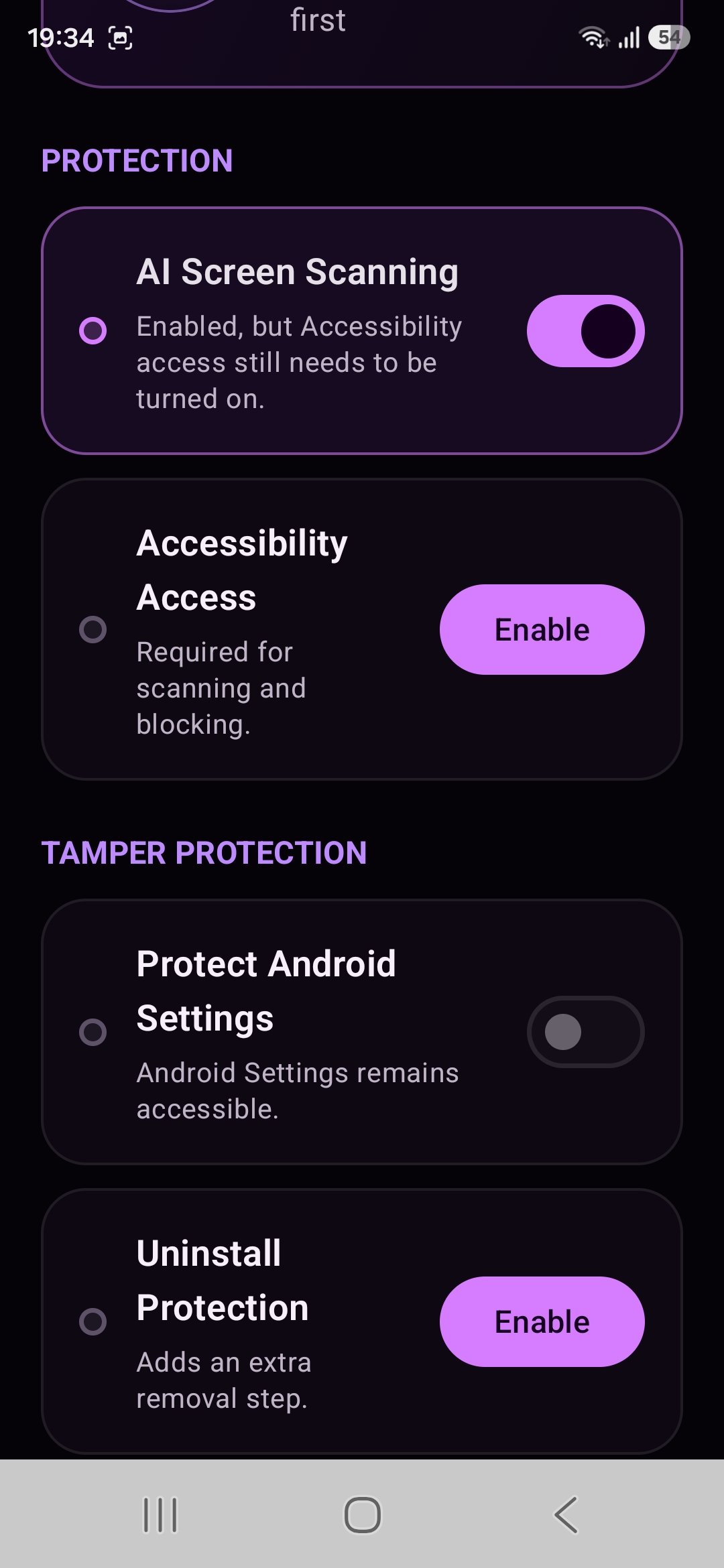
Read each Android permission prompt carefully before accepting a control that can affect normal phone use. Settings protection can interrupt normal access to your phone settings, while Device Admin adds a step to the removal process. Neither feature means a phone can never be changed or reset, so choose a lock duration that fits your life and keep the support page available if a device behaves differently from the screenshots.
Test an ordinary day and a difficult moment
The 24 hour trial is a chance to check your actual phone before spending money. Follow the illustrated installation guide, start the trial and make sure protection stays active while you use the browser and apps that matter. Pay attention to ordinary tasks that must keep working as well as situations where you want the block screen to appear.
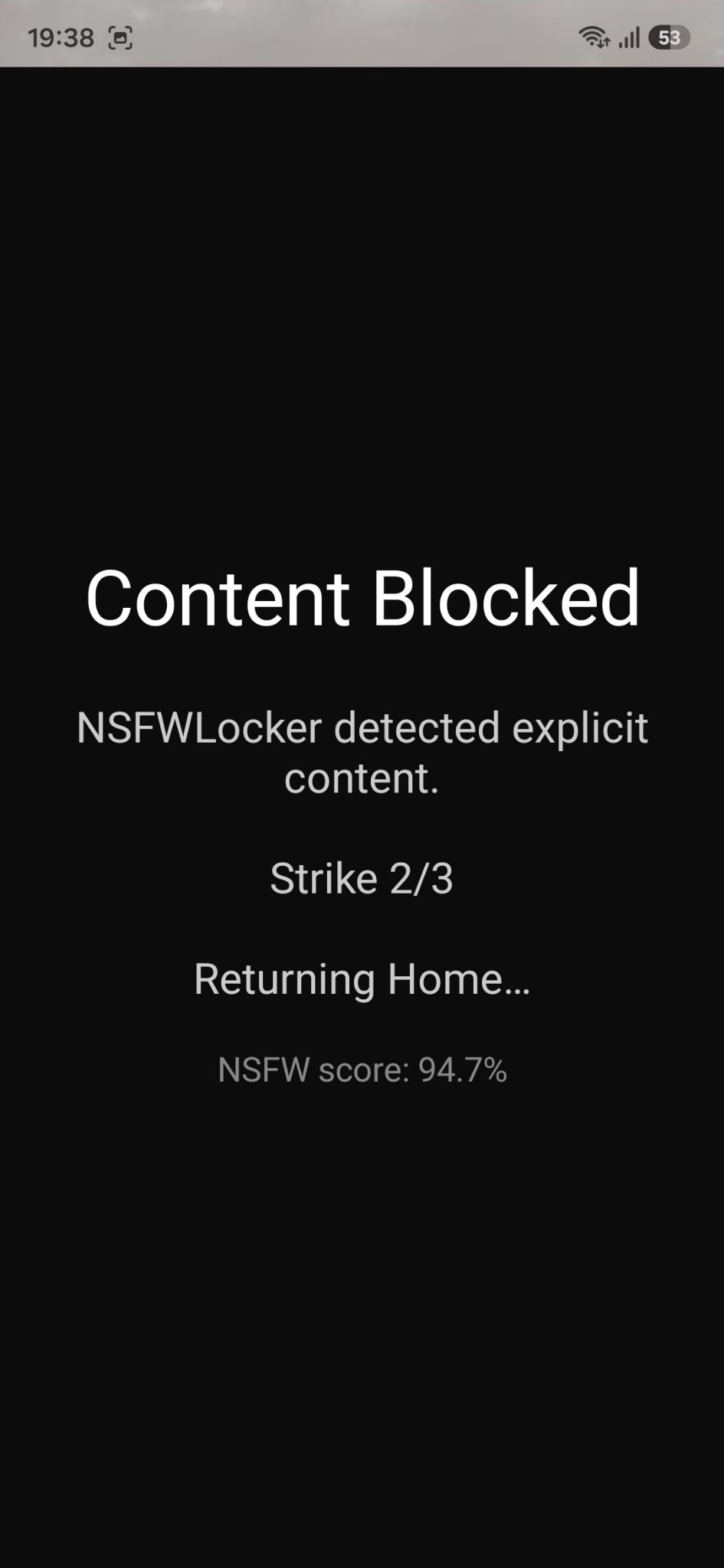
Record any missed cases, any mistaken blocks and whether the removal controls give you enough pause to change course. If a protected window is invisible to screenshot based detection, treat that as a coverage gap instead of assuming the app will catch it later. The lifetime Android licence is £35 for one device after the trial, with no card required to try it.
Decide what belongs in your setup
A good blocker fits a specific route and survives normal use on your device. A domain filter may be the simplest answer for a small set of adult sites, while screen detection is more relevant when explicit content appears in feeds and other apps. Some people will want both layers because they act at different points.
If your main difficulty is switching the protection off, read the guide to bypass resistance before turning on the stronger options. Your test should answer a practical question: did the setup interrupt the content you wanted to avoid without making daily phone use unworkable?