Check the phone and download source
NSFW Locker supports Android 11 and later, so check your Galaxy phone’s Android version before installation. Use the official installation guide and its download link rather than an APK copied from an unrelated site. An APK asks for more trust than an app installed from a familiar store, especially when it later requests Accessibility and optional Device Admin access.
Make time to read the permission screens instead of rushing through the setup during an urge. Samsung's security controls exist to protect the device from unwanted software, so the decision to change a security setting should be deliberate. If a warning differs from the pictured example or you cannot verify the download source, stop and ask support before proceeding.
Understand Samsung Auto Blocker
Samsung Auto Blocker can prevent installation from sources outside its approved stores. The illustrated walkthrough shows an Unknown app blocked warning followed by the Auto Blocker setting in Security and privacy. If you decide to install the official APK, the site's instructions describe temporarily changing that setting for the installation and turning it back on afterwards.
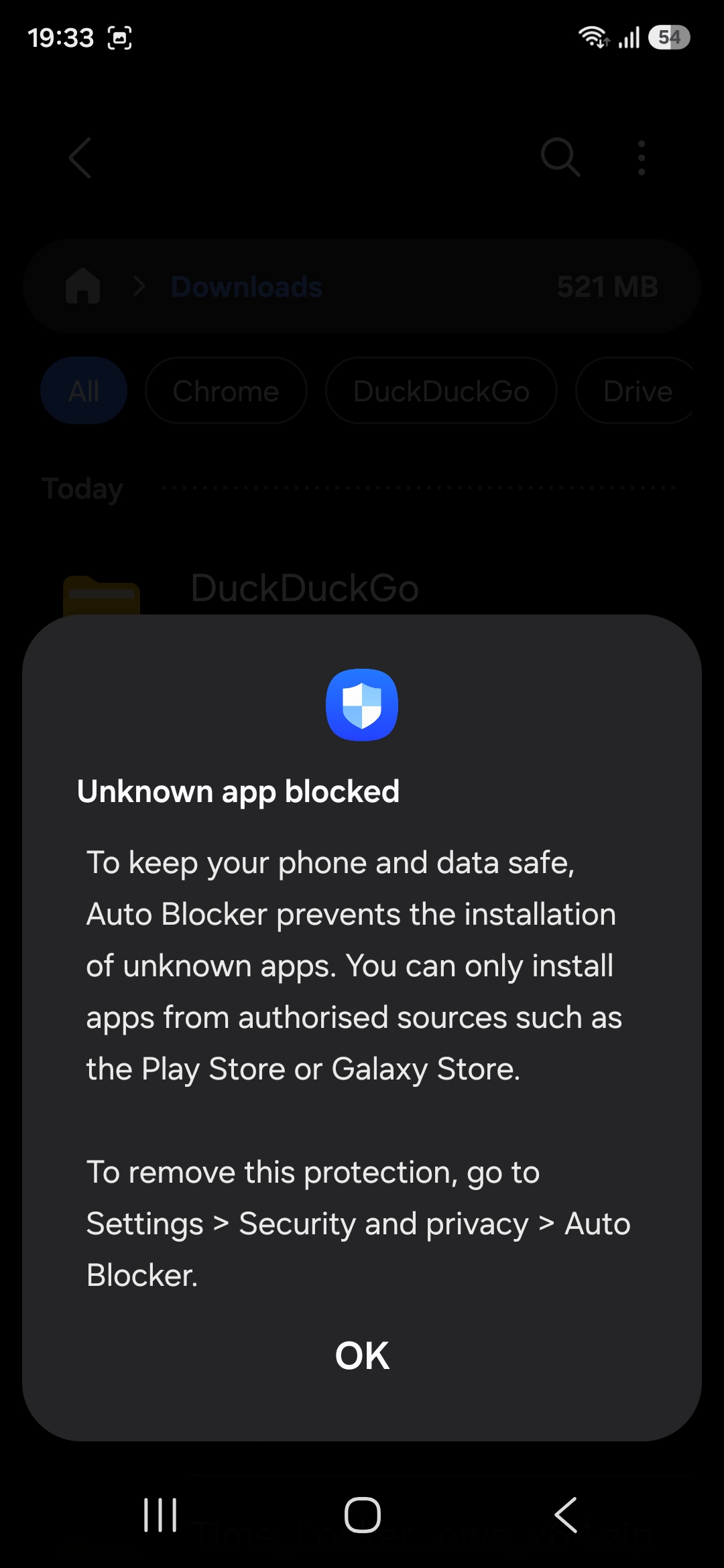
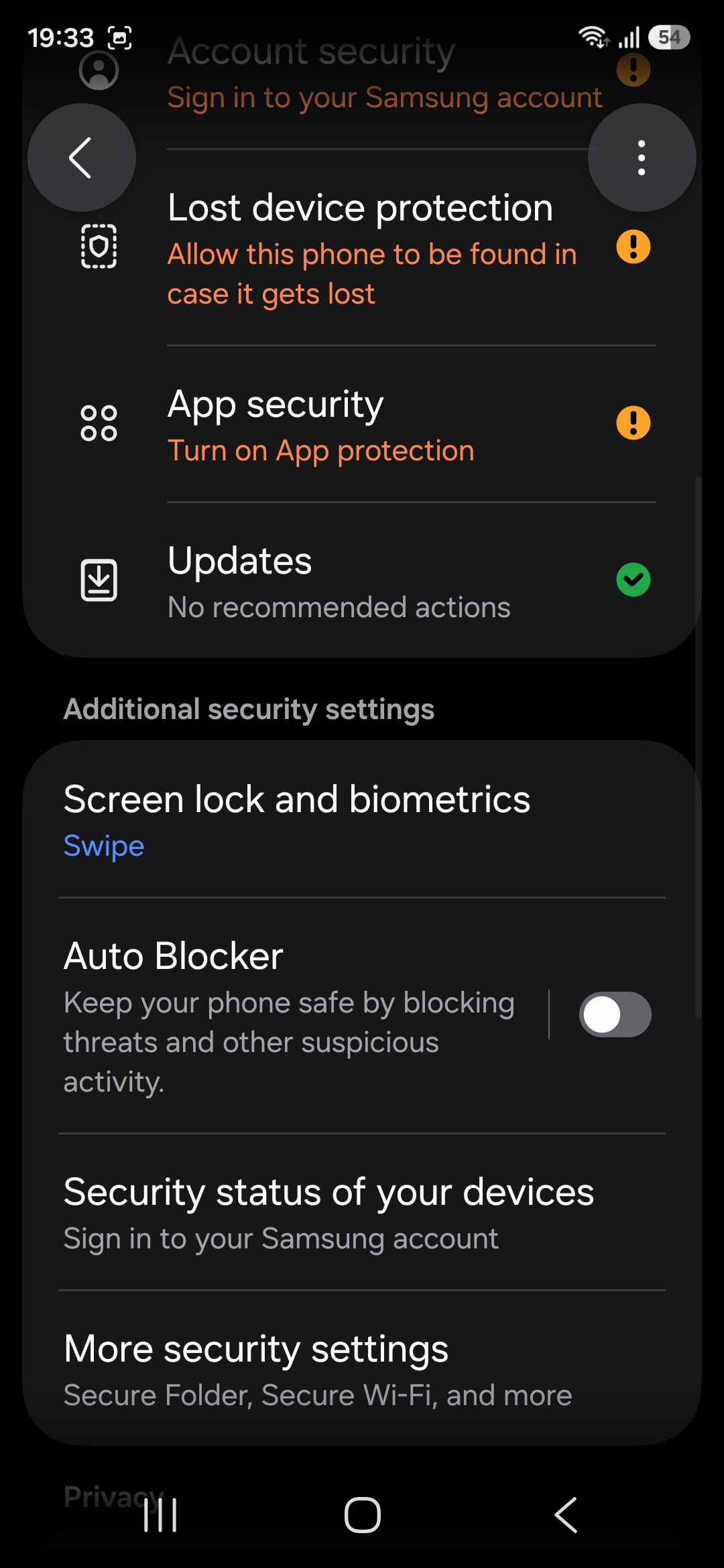
Samsung's own Auto Blocker guidance explains why APK installation can be stopped. The route through Settings can change between models, so use the Settings search if your menu looks different. Play Protect can also present its own warning; treat it as a separate decision and restore normal device protection after the installation step is complete.
Enable the Android protection service
Once the app is installed, start the 24 hour trial and turn on AI Screen Scanning. The protection screen then directs you to enable Accessibility Access for the NSFWLocker Screen Protection service. Android may require an additional Allow restricted settings step for an app installed from an APK before the Accessibility switch becomes available.
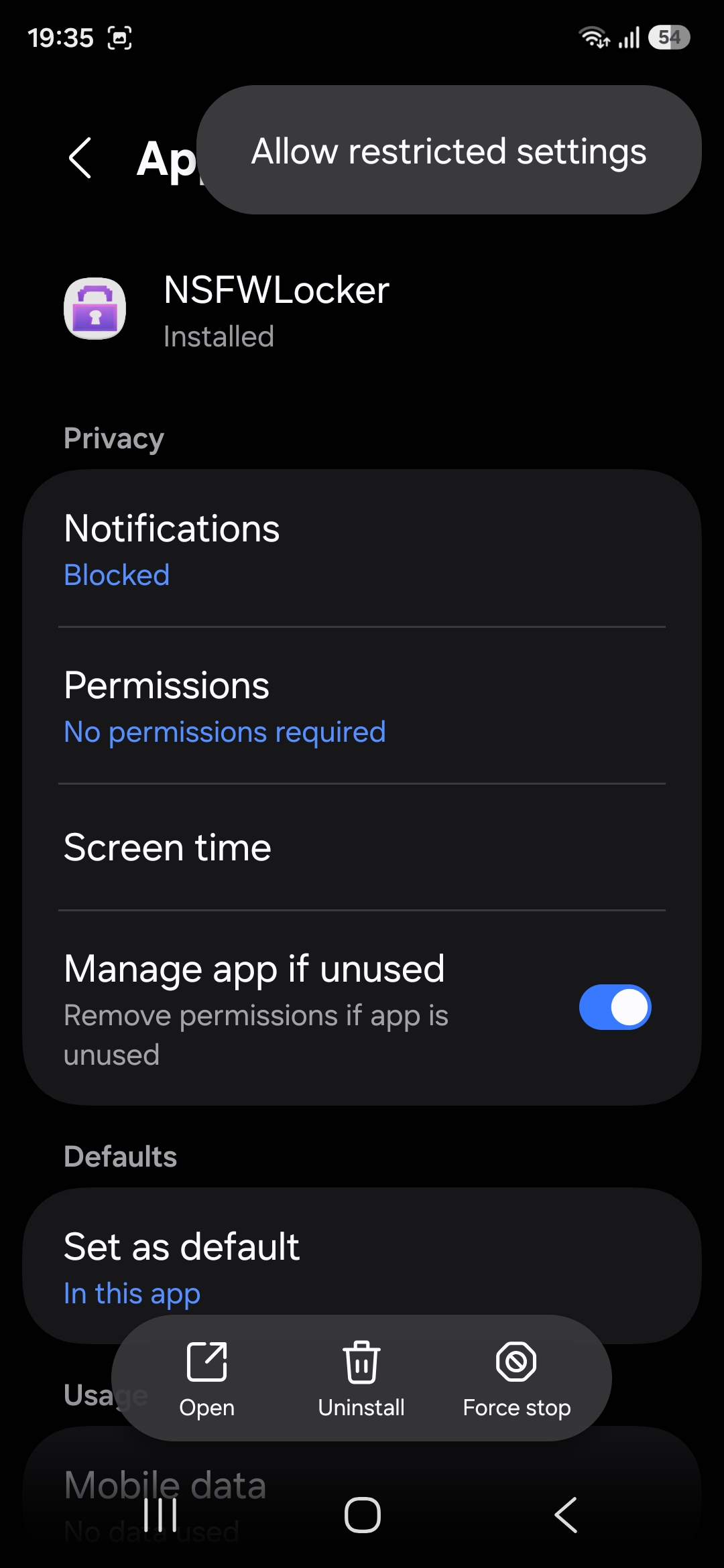
Google's restricted settings explanation describes why this is a sensitive permission, so read the Android prompt rather than treating it as an error to click past. The Accessibility guide explains what this part of the setup supports and where screenshot based detection has limits.
Check battery behaviour during the trial
After scanning and Accessibility are active, observe whether protection continues working while you switch apps and use the phone normally. Samsung battery management may put some apps to sleep, and the NSFW Locker installation guide recommends adding the app to Never sleeping apps if that interrupts protection. Make this change only if you see a need during your test.
Samsung explains the Never sleeping apps list in its support material. A background exception can affect battery life, so pay attention to battery behaviour alongside blocking coverage. If your phone's menus do not match the screenshots, send your Samsung model and Android version to support instead of following steps meant for a different device.
Make a decision based on the actual device
Try normal browsing and the feeds that caused trouble before you enable optional Settings protection or Device Admin. Check whether the app interrupts content where you expect, whether secure app windows create gaps and whether ordinary tasks remain usable. The privacy policy says detection screenshots are processed locally in memory and notes the screenshot protected window limitation.
The trial needs no card and gives you 24 hours to learn whether the setup works on your Galaxy phone. A lifetime Android licence is £35 for one device if you choose to keep it. Restore Auto Blocker and Play Protect after installation, then keep the security protections you normally rely on.