
Prepare the test before starting the clock
Write down the browsers and apps where you want protection, then note the action you usually take to bypass a blocker. Include a normal task that must continue working, such as messaging or changing an everyday phone setting. This gives you a small set of observations that matter more than a generic feature checklist.
Check that your phone runs Android 11 or later and set aside time to follow the official installation guide. NSFW Locker offers a 24 hour free trial with no card required. The activation screen also shows the separate lifetime licence option, so you do not need to buy anything in order to test the blocker.
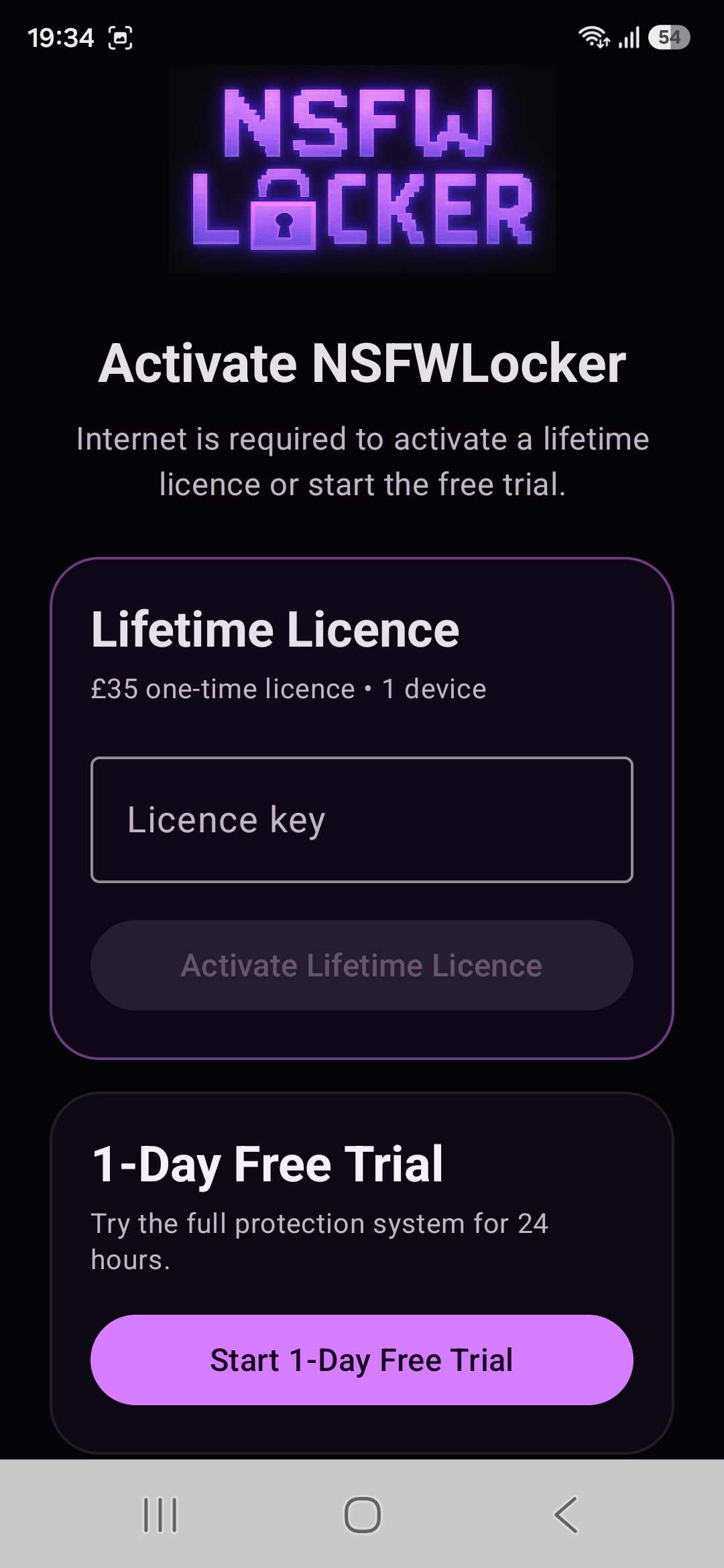
Complete the core setup
After installation, enable AI Screen Scanning and follow the Android Accessibility flow. An APK installed outside an app store may require Allow restricted settings before the Accessibility service becomes available. Read the Android prompt carefully because it describes a sensitive permission, then check that the app reports the service as enabled.
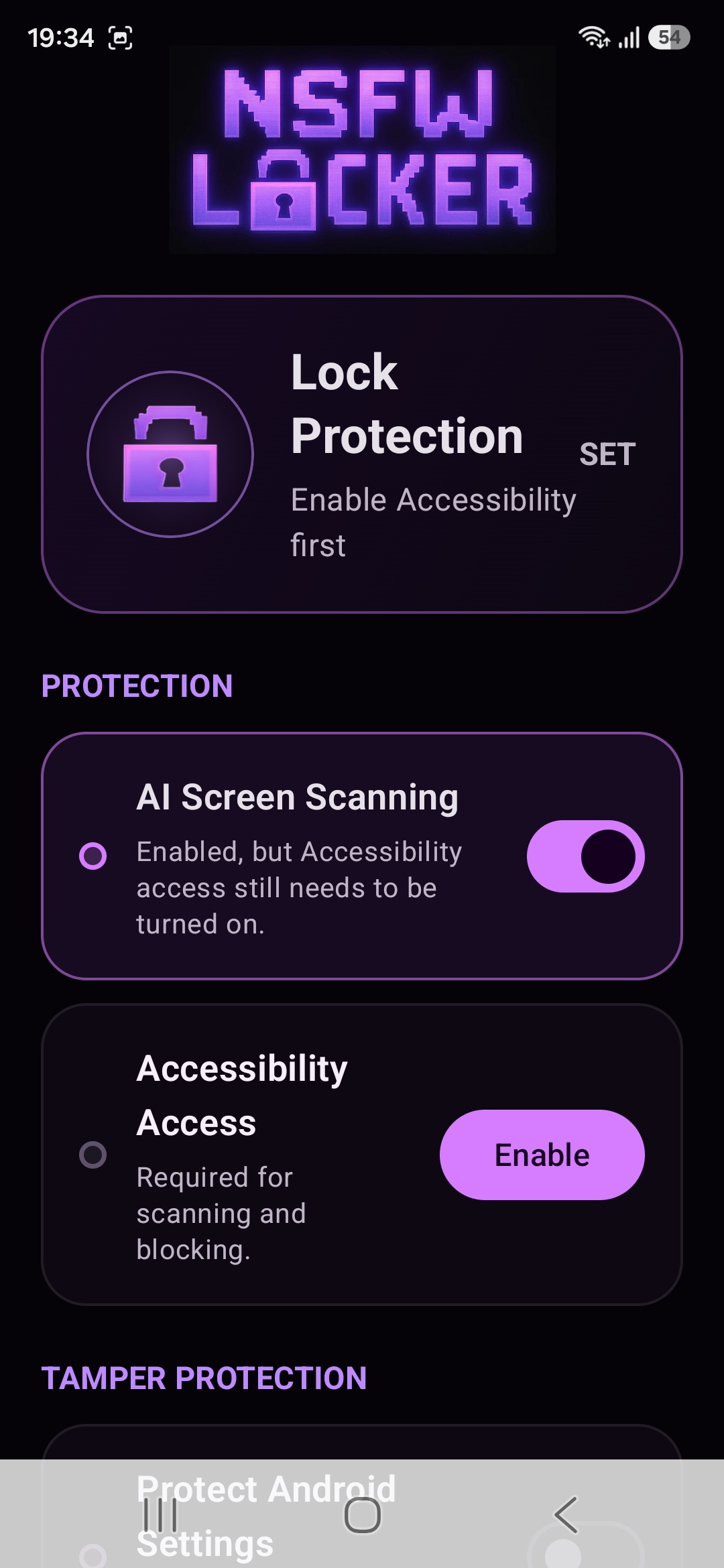
On a Samsung phone, Auto Blocker and Play Protect may show installation warnings. If you choose to proceed with the official APK, restore the normal security controls after installation as the site guide instructs. If Samsung battery management interrupts protection during use, the guide recommends adding NSFW Locker to Never sleeping apps and testing again.
Check coverage and false blocks
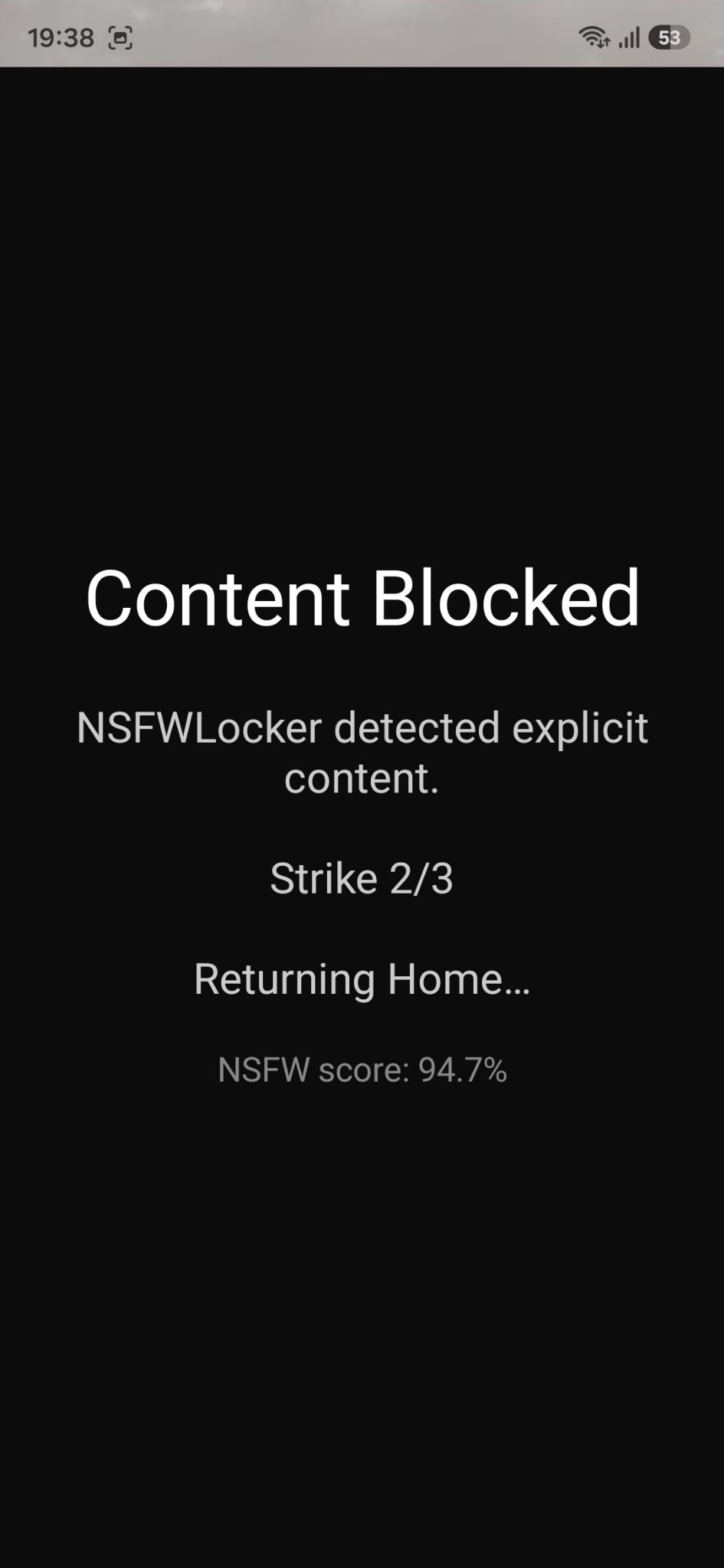
Use the phone normally while paying attention to the apps and screens on your list. The useful result is not just a block screen appearing once; it is whether the app remains active, interrupts the content you want to avoid and leaves unrelated tasks usable. Record false positives because a tool that blocks normal use may be hard to keep enabled.
The privacy policy notes that screenshot protected windows cannot be inspected by screenshot based detection. A gap in such a window should be recorded as a coverage limit, not disguised as a temporary setup issue. If a known website is the gap, a DNS or browser filter may address it earlier in the browsing flow.
Test bypass controls one at a time
If the scanner works but you normally turn a blocker off, try the optional controls separately. Protect Android Settings targets quick access to Settings, Uninstall Protection uses Device Admin to add a removal step and Lock Protection sets a period during which scanning must remain on. One change at a time makes it easier to identify an inconvenience or unexpected effect.
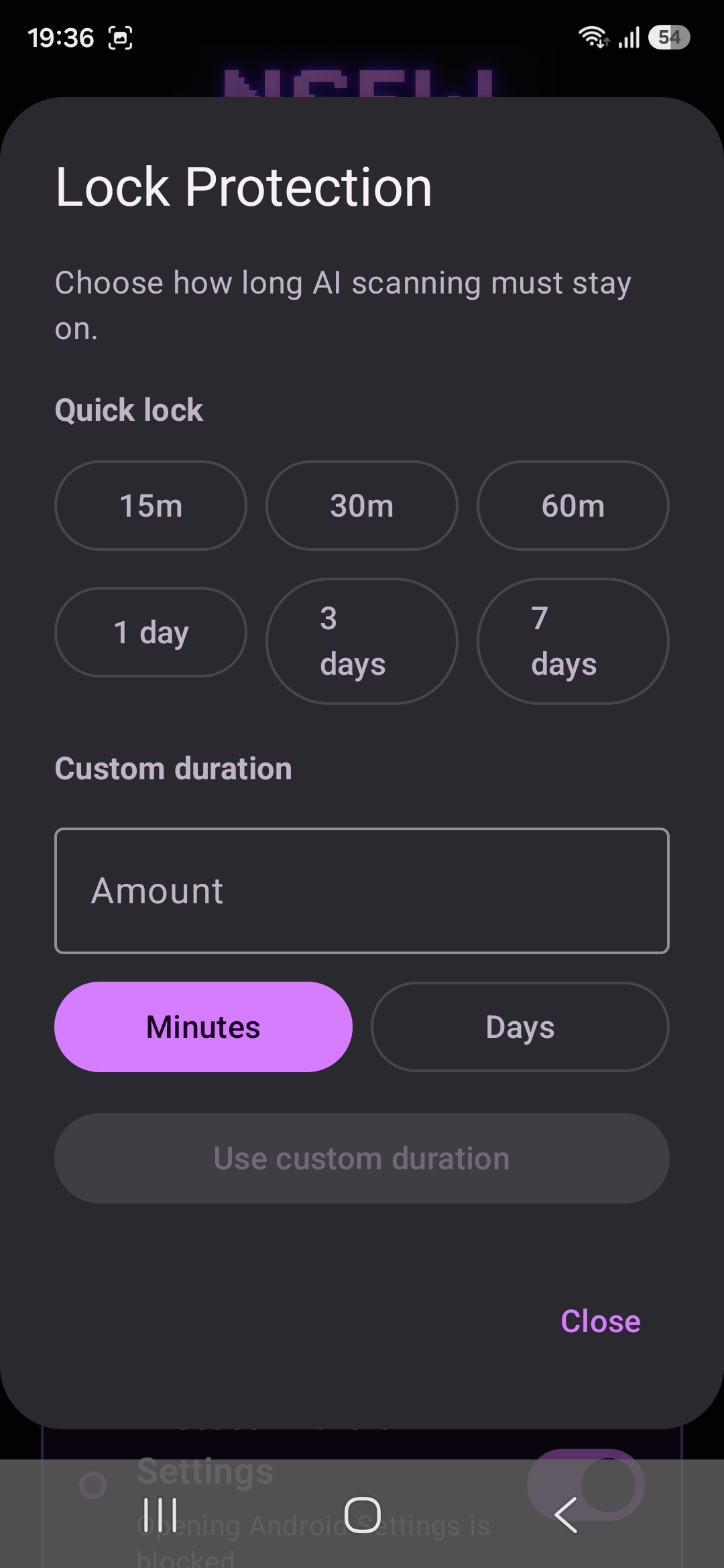
Check that you can still handle ordinary phone tasks and settings access before choosing a longer duration. You want a pause at the moment you would normally bypass protection, but you also need a phone that remains manageable. The uninstall protection guide explains the difference between Device Admin and the other controls.
Decide from the notes you made
At the end of the trial, compare your observations with the routes written down before installation. If the app blocks relevant content but causes frequent mistakes, decide whether the tradeoff is workable. If it misses the route that matters most, identify whether a domain rule, app restriction or different setup would be a better fit.
NSFW Locker's Android lifetime licence costs £35 for one device and includes updates according to the site. Pay only if the result on your own phone answers the problem you came to solve. If a setup step fails, contact support with your model, Android version and a screenshot of the screen where you became stuck.