Why NSFW Locker asks for this permission
NSFW Locker uses Accessibility as part of its screen monitoring and blocking flow on Android 11 and later. In the app's protection screen, AI Screen Scanning and Accessibility Access appear as separate steps. Turning on a scanning toggle does not automatically approve the Android system service, so follow the installation guide through both controls before evaluating whether protection works.
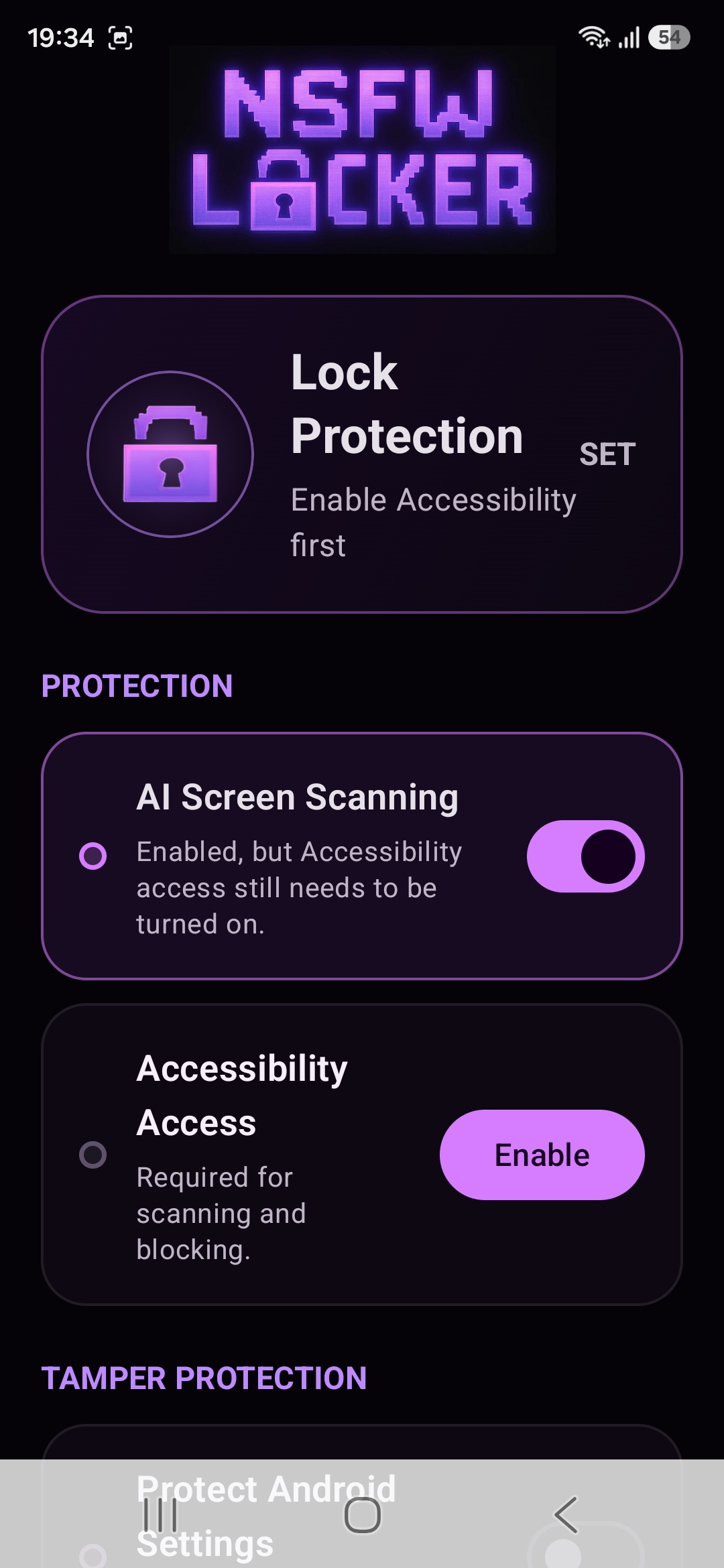
The permission supports the app's ability to respond while you use other apps. It is a broad Android capability, so the operating system asks for explicit approval rather than letting an APK enable it for itself. A trusted download source and a clear understanding of the app's purpose matter more here than they would for an app that only stores a personal note.
Why Android may show restricted settings
For an app installed from an APK, Android may block access to a sensitive permission until you explicitly allow restricted settings in App info. NSFW Locker's illustrated guide shows the App info menu followed by the service screen. This is an Android security boundary, not a feature you should disable casually for every downloaded app.
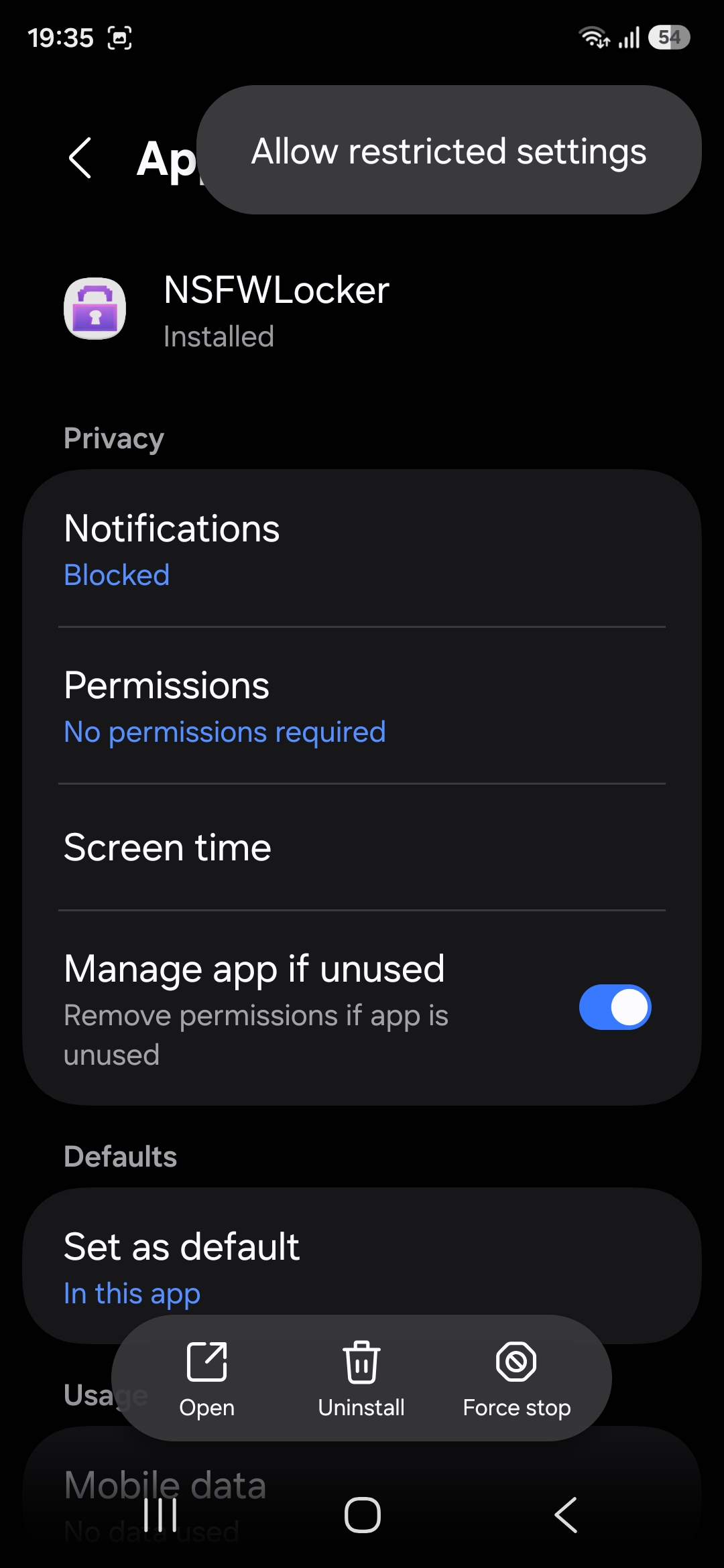
Google's restricted settings help page explains that enabling restricted settings can allow access to sensitive information. Check that the APK came from the official installation page, then decide whether you trust the function enough to grant that access. If the menu is absent or the system warning is different, ask support about your phone model rather than guessing through unrelated settings.
Read the actual permission dialog
Android displays a confirmation for NSFWLocker Screen Protection with a description of what the service can view or perform. Read the words shown on your own device because the dialog is the authoritative permission request. The screenshot below illustrates the step, but system wording may differ across Android releases and phone manufacturers.
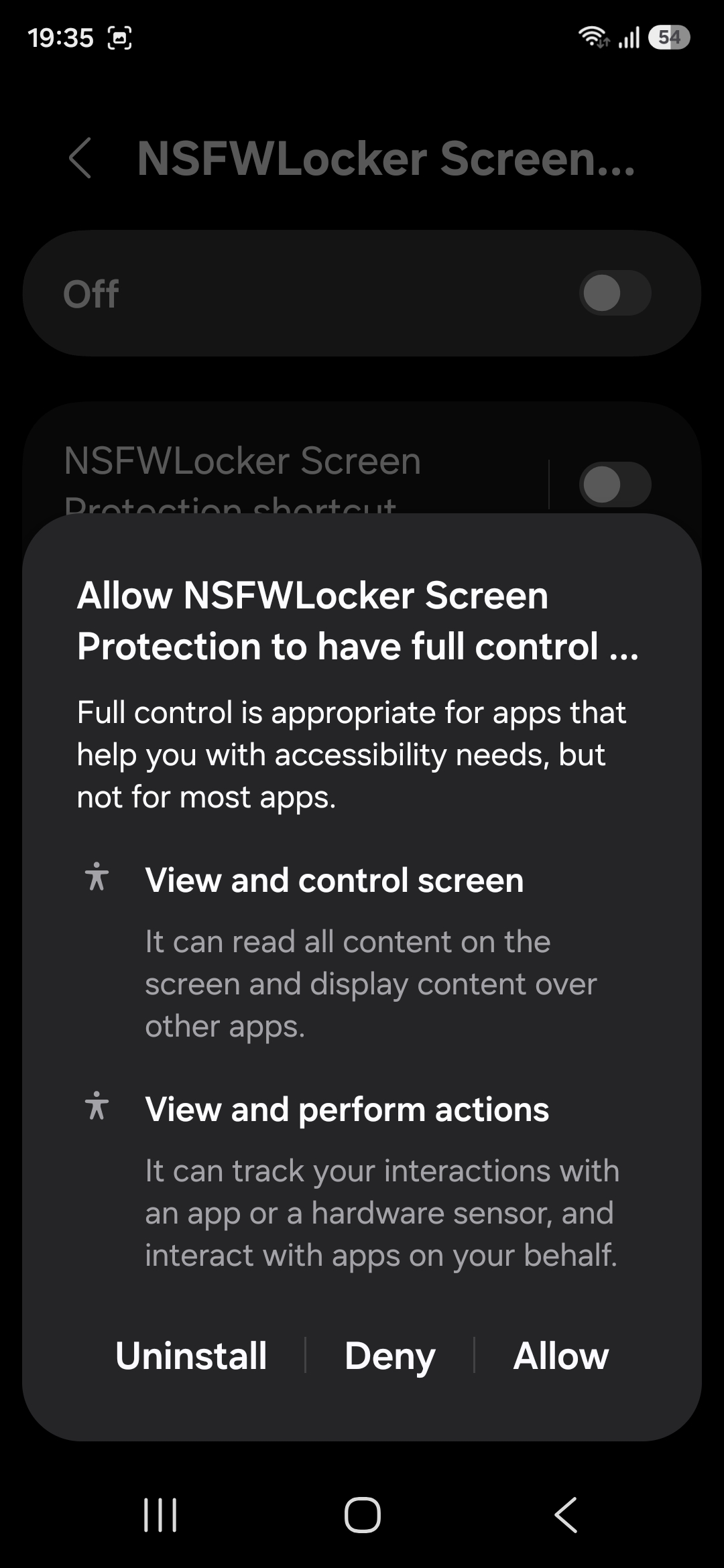
Granting Accessibility does not mean that the app will recognise every explicit image. You still need scanning enabled, and you should test the result in your browsers and apps. If your concern is whether content is sent away for detection, the privacy policy states that detection screenshots are analysed locally in memory and are not uploaded to NSFW Locker servers.
Know where screen detection stops
Android lets apps protect sensitive windows from screenshots when the content should remain out of captured images. The NSFW Locker privacy policy says screenshot based detection cannot inspect content in those windows. A page or app that uses this protection may therefore be a blind spot, even while Accessibility is enabled and the app otherwise appears active.
This limit is important when comparing a screen detector with a domain filter. The filter can stop a known website before it loads, while screen detection can respond to visible content on services a domain filter does not want to block entirely. Neither layer proves full coverage on its own, so the right choice depends on the routes you actually use.
Evaluate the permission during the trial
The 24 hour trial lets you check whether the broad permission produces a useful result on your particular device. Confirm the service is on, test the apps that matter and look for missed content or unwanted interruptions during ordinary phone use. Make the decision based on observed behaviour and your comfort with the Android permission.
If the protection works but you tend to switch it off, optional tamper controls and Lock Protection can add friction after the core setup is proven. If it fails to see a screenshot protected window, stronger removal controls will not solve that visibility gap. The Android lifetime licence costs £35 for one device if you decide to keep the app after the trial.