
What Device Admin contributes
Device Admin is an Android system role that requires a separate activation screen. In this setup, NSFW Locker offers it to add friction to uninstalling the app. That can be useful if your usual bypass is to remove a blocker quickly, but it does not change how the screen scanner recognises explicit content.
The app presents Uninstall Protection alongside a separate Protect Android Settings control. Neither option is required to try the core screen scanning flow, so you can establish whether detection works first. If you decide that a removal barrier is relevant, follow the illustrated installation guide through the Android permission screen rather than relying on the app switch alone.
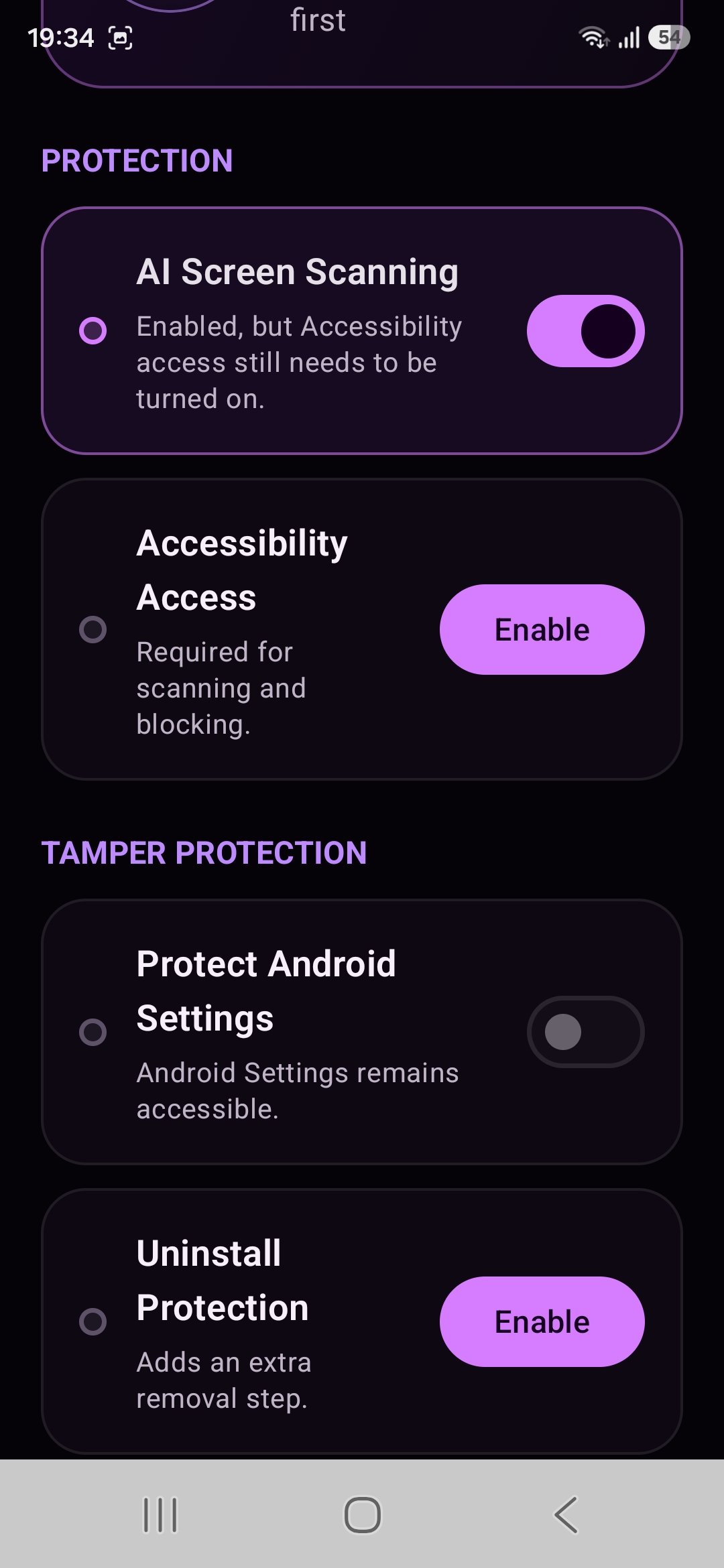
Read the system activation screen
When Uninstall Protection is selected, Android opens a Device Admin confirmation that explains the role and asks you to activate it. The screenshot shows the Android system screen rather than a marketing illustration. Read the version presented on your own phone because manufacturers and Android releases may phrase permissions differently.
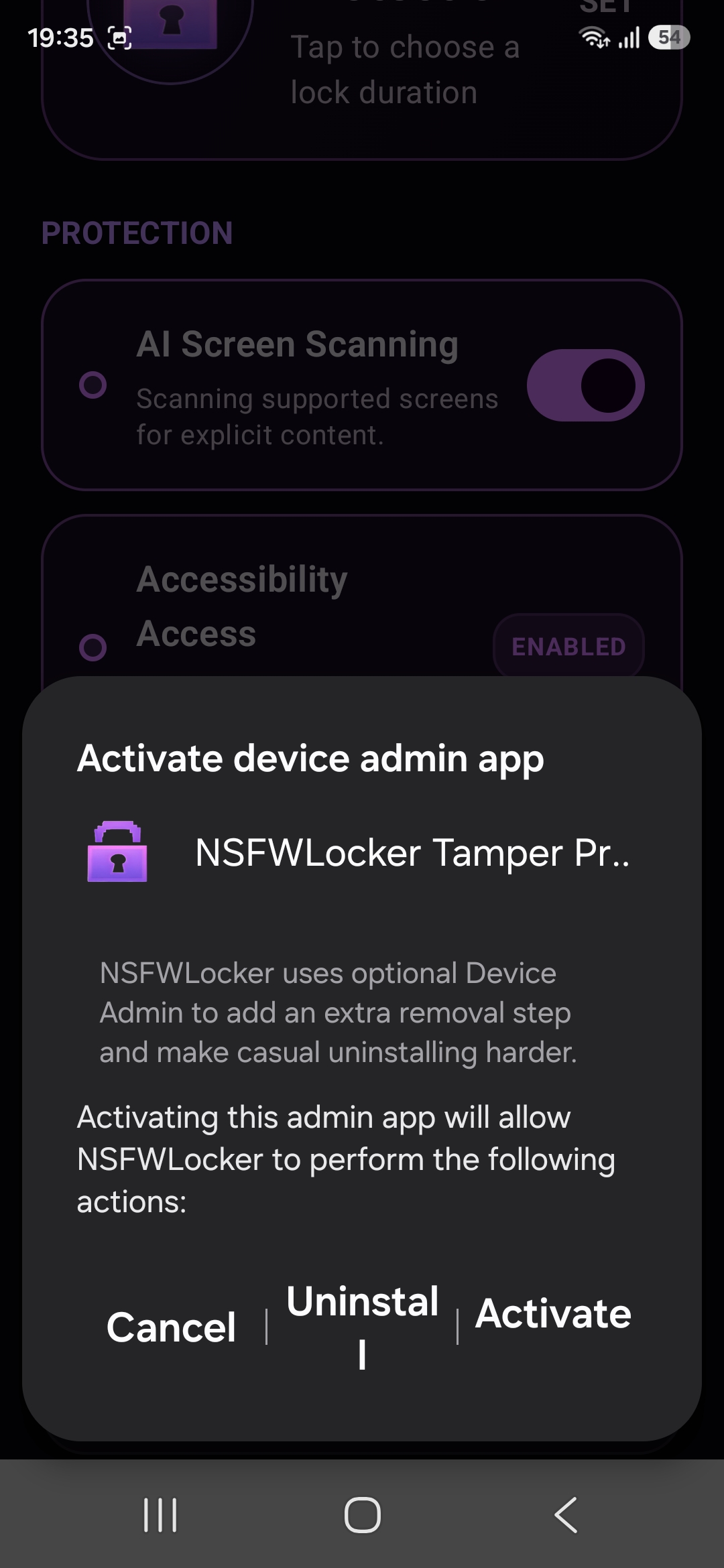
Device Admin has a different role from the Accessibility service used for screen protection. NSFW Locker uses Accessibility to support screen monitoring and blocking, while the optional Device Admin step concerns removal friction. Treating these as separate decisions helps you understand what each permission adds and prevents you from assuming that one approval automatically enables every protection feature.
Compare it with Settings protection and a timed lock
Protect Android Settings can interrupt access to the Settings app when it is enabled, which targets a different route from uninstalling. Lock Protection asks you to choose how long screen protection must remain enabled. A person who toggles scanning off may benefit more from a duration, while someone who removes the app may care more about the Device Admin step.
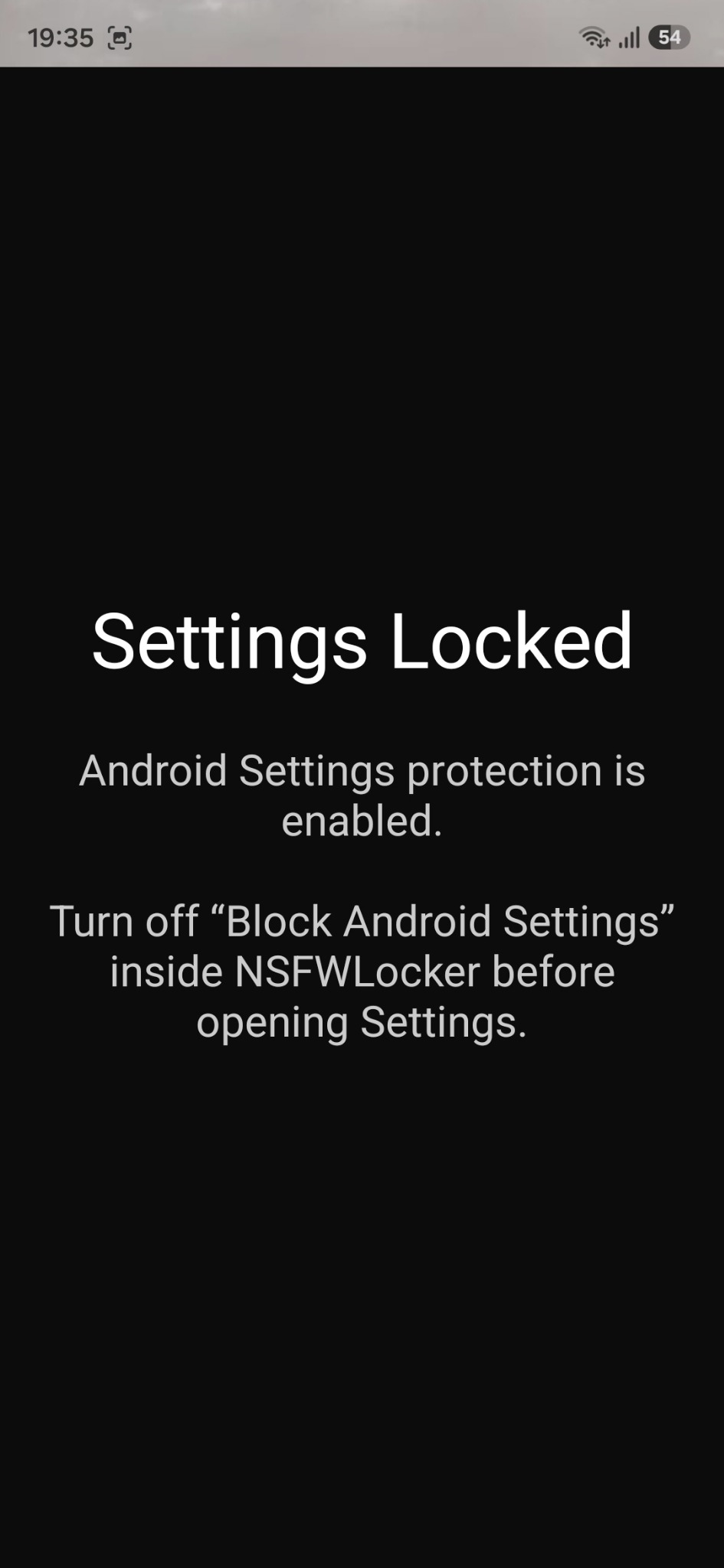
Each control can affect ordinary phone use even when you enabled it for a useful reason. Settings protection can affect legitimate phone adjustments, and a long lock period can be inconvenient if you have not tested it first. Start with a short trial of the specific control that addresses your bypass rather than enabling every option on the same day.
Test safely during the free trial
Begin with scanning and Accessibility, then check that your usual apps work and that the blocker responds where you expect. Enable Device Admin only after you understand the core result. Keep the support address available and note your Android version so you can describe a device specific issue without guessing at a menu you cannot find.
The 24 hour trial does not require a card and lets you assess the setup before paying. During that time you can decide whether an extra uninstall step supports your goal and whether the app itself performs well enough to keep. The lifetime Android licence costs £35 for one device after the trial, so a paid decision should rest on a working setup rather than a permission screen alone.
Keep the claim precise
An extra Android removal step can be valuable because a brief delay creates time to reconsider an impulsive choice. It cannot honestly promise that every possible phone change, account action or reset is impossible. The harder to uninstall guide explains how to combine the controls while preserving that practical distinction.
If the app fails to detect content in a screenshot protected window, Device Admin will not correct the visibility gap. If the app catches the content but you repeatedly remove protection, the additional step is directly related to your problem. Make that distinction before deciding how strict to make the phone.